Introducing Satchel, Backpack on your iPhone

April 7th, 2009

Like many of you, we’re huge fans of 37signals’ Backpack. It’s a terrific tool for organizing to do items, ideas, files: basically, all those things you need to keep track of.

Here at Stand Alone, we use it for keeping track of upcoming releases, feature requests, and generally anything we need to remember for longer than about 5 minutes (some may argue 2 minutes, but you get my point).

That said, using Backpack on an iPhone has been a frustrating experience. It’s a rich site, designed for a moderately large screen, and what it’s trying to do is really not well suited to Mobile Safari.

Well, that frustration is now over.

Today, after months of development and testing, we’re announcing Satchel, a super fast and functional native Backpack client, developed and optimized for the iPhone. We support all the features of Backpack that you know and love, on device — even when you don’t have access to the network!

With Satchel, you can easily view your Backpack pages:

All of your tags are listed along with the page name, and you can even sort by then, making organization much easier.
Of course, Pages are only the tip of the iceberg with Backpack, so we added a quick way to review page contents at a glance:

Once you’ve got your page contents listed, you can tap to view individual item details, edit and check off items from your lists, or add notes.

What’s even better is that all of this works online and offline: Satchel automatically and seamlessly synchronizes with Backpack’s servers as soon as a network connection becomes available. If you’re on a plane or otherwise ‘offline’, you can easily check all your cached Backpack data, make changes, and add new items. Once you’re back online, Satchel will automatically synchronize all your changes.

Over the development period, I’ve personally found Satchel has made Backpack even more useful than it was before (and I was a heavy Backpack user). For example, I’m using Reminders to keep a To Do list that actively mails or texts me when I need to get something done. And with Satchel, I can quickly check and see what I’ve got to do for the next day or so, then check again on my desktop computer when I get home.

Of course, we’re only scratching the surface here: Satchel offers a lot more of Backpack’s features, right in your iPhone. The best way to see what it can do is to check it out on the AppStore

Although we’re sure you’re going to love Satchel, this is only the first version — we have all sorts of great ideas to make it even better. Don’t hesitate to drop us a line if you think we’re heading down the wrong path with a feature or function — or, even better, to tell us that you love it as much as we do.

Puzzling Out an Interface

July 28th, 2008

We in the iPhone development community face a rather large conundrum when it comes to blogs: we’d love to share what we’re finding out about this new platform, but are shackled in what we can say by the ongoing NDA covering all discussion. Given this constraint, I decided I’d talk about the design decisions we made in putting together Crosswords for the iPhone, rather than the underlying code (which hopefully I’ll talk about in a future, post-NDA entry).

First Pass: AJAX

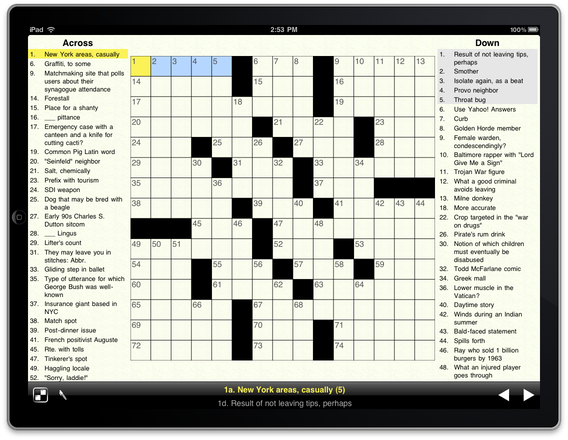
Just before the iPhone was released, we started work on a browser version of Crosswords. This gave us a good test-bed to work on some screen layout concepts, but the project never really got very far due to limitations in the iPhone version of Safari (specifically, there was no way to track a finger as it was dragged from square to square, which meant precise position of the ‘cursor’ was not possible).

Web_client.png

Second Pass: Jailbreak Toolchain

With the release of the unofficial toolchain SDK in the fall of 2007, we decided a new approach was in order. Building off the design of the web version, we were able to add a good deal of functionality and usability to the design. Native controls allowed for faster display and more responsiveness, as well as an overall better feel.

We were still stymied, however, by a lack of precision when touching the screen. On previous mobile devices, you use a stylus to select elements on-screen. On the iPhone, of course, you use just your finger. While this has great advantages in terms of convenience and feel, it means you’re a lot less exact when selecting a spot (the finger presents a much larger ‘contact patch’ then a stylus.)

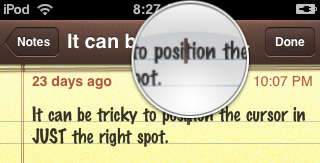
Apple has gone to great lengths to eliminate situations where precise pixel location is needed, but one example of where they couldn’t avoid it is in positioning the cursor. The solution they came up with is simple: zoom in on just a portion of the screen:

text_loupe.png

In Crosswords, we looked at pinch zooming, but felt it wasn’t the best fit for a Crossword puzzle. When zoomed in, you could easily select a square, but had to do a lot of scrolling for longer clues, or when jumping from one clue to the next. However, the zoom approach used in cursor positioning seemed a good fit, so we added a zoom loupe:

jailbreak_loupe.JPG

Third Pass: SDK First Try

With the release of the SDK came the much anticipated documentation. Finally we could get some sort of official word on the classes and method we were using (with the Jailbreak toolchain, all information available had been gleaned from trial-and-error, and was frequently incomplete).

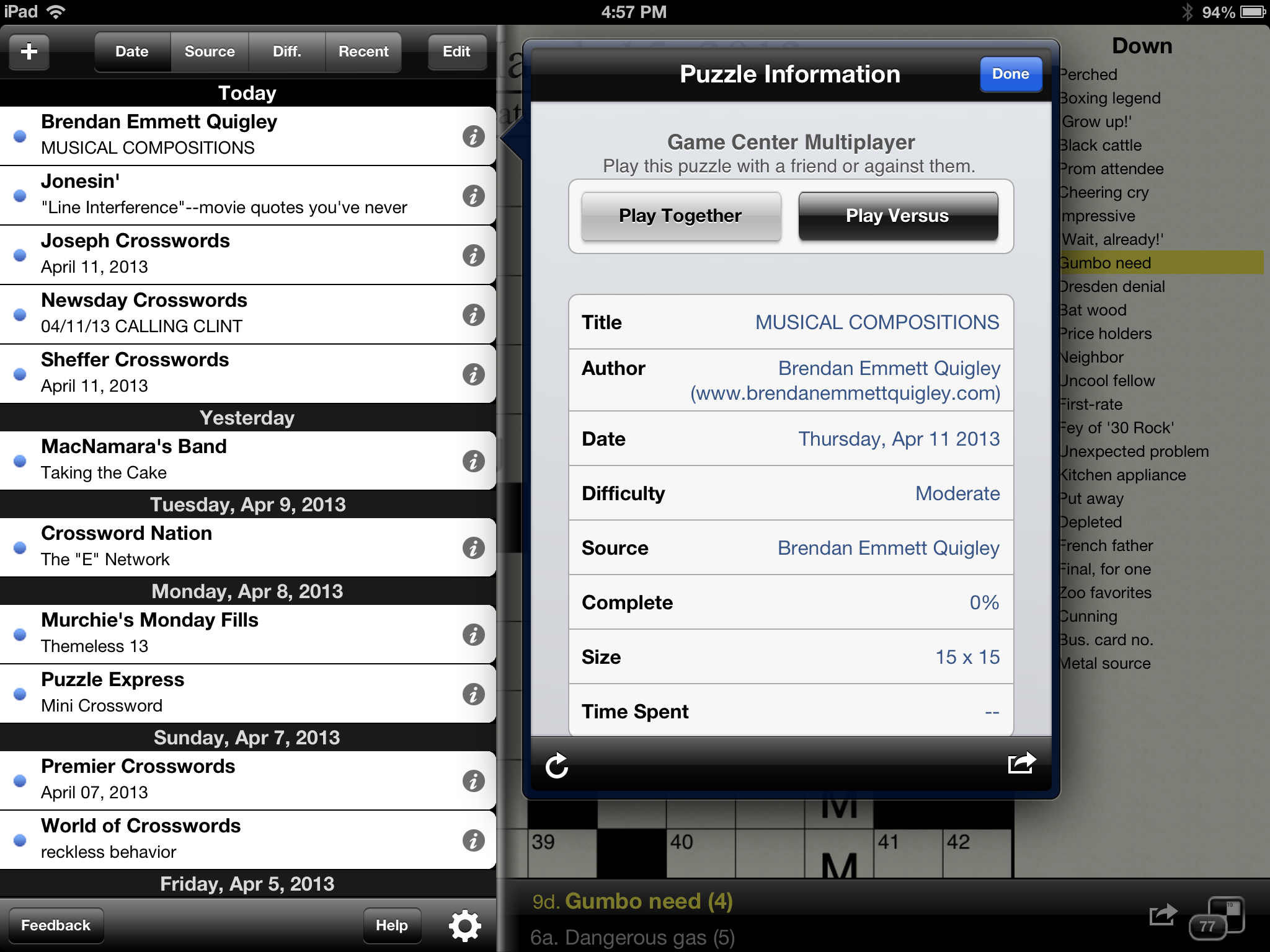
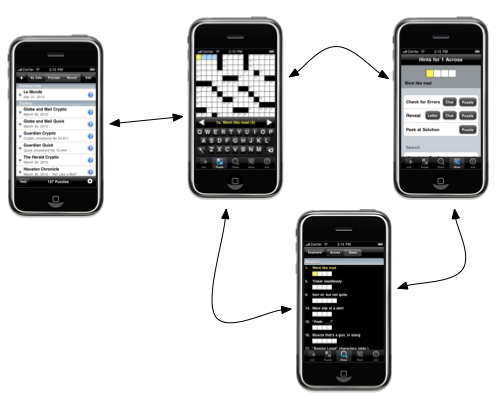
Of course, the SDK required an almost complete rewrite of the application, so we took the opportunity to polish both the code and the user interface. We moved some elements around on screen, trying to find the best layout that maximized puzzle access while still allowing the user to use the keyboard and see clues.

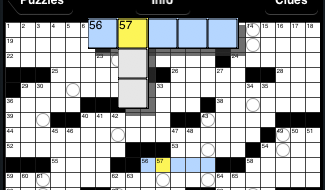
With this version, we decided that perhaps the zoom loupe was not ideal for a crossword puzzle. We knew the exact area of interest (the intersecting clues that the user was attempting to tap), so we decided to zoom in on just those clues instead:

old_zoom_style.png

This has the advantage of allowing the user to focus on just the area where they’d want to enter letters, and position their selection precisely. However, it’s certainly not as aesthetically pleasing as the loupe, and gives no information about adjacent squares. This was used in the 1.0 release of the software, but we weren’t 100% happy with it.

Final Pass: SDK Refined

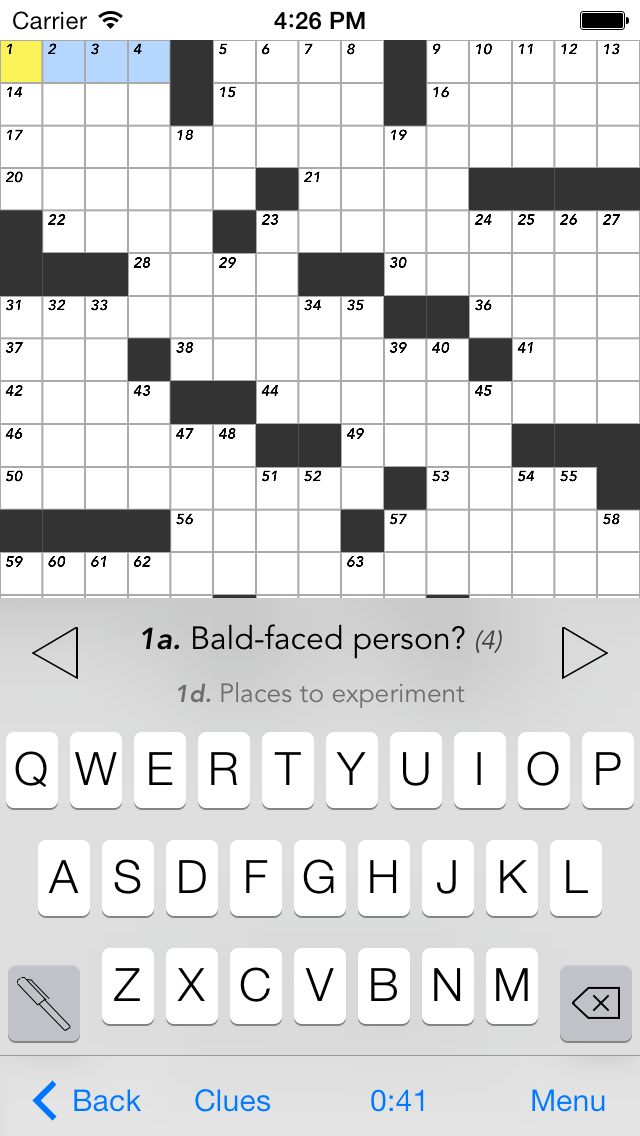
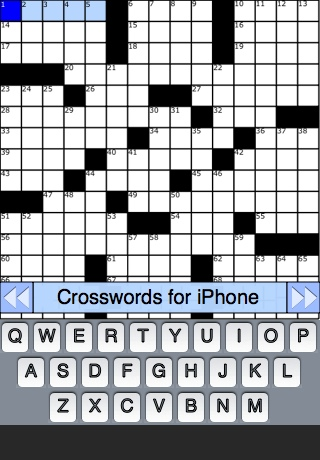
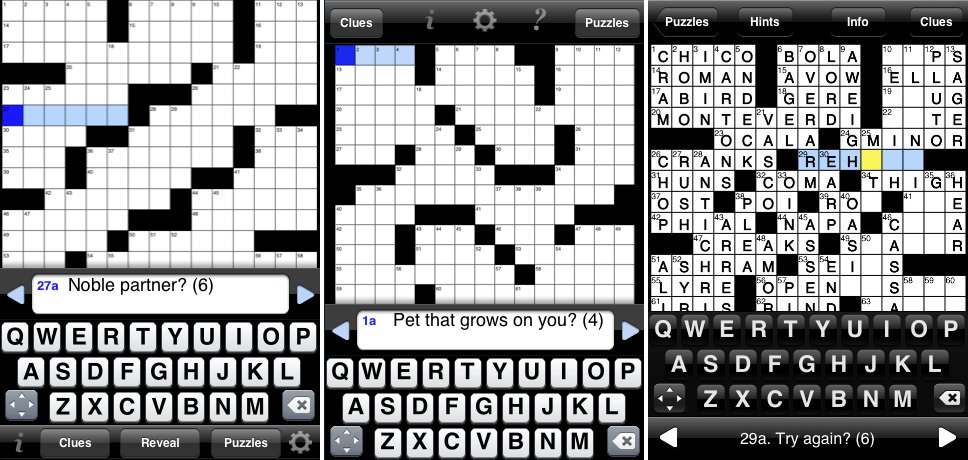
At Apple’s World Wide Developer Conference in June, we got the chance to sit down with some of Apple’s User Interface gurus and hash over our existing interface. Apple had some great suggestions, and also prompted us to take a look at what we were doing in some areas. One of their suggestions was to take our current black-and-white theme and extend it so as to really bring the eye’s focus to the puzzle itself. To this end, we inverted both the keyboard and the clue. Below, you can see the evolution of the design over time:

evolution.jpg

One the left, the Jailbreak toolchain version, In the middle, our first attempt with the SDK, and on the right, the finished product, after a UI review with Apple and some refinement following a lot of user testing.

Going Forward

With the 1.0 release, we’ve pretty much settled on an overall layout for the application, but we’re still refining the feel of certain features. For example, as mentioned earlier, we weren’t really satisfied with the experience of the zoomed-in clues; with the version 1.1 release, we’ve returned to the zoom loupe, and feel it works well.

iPhone-Optimized!

March 25th, 2008

To coincide with our recent Crosswords for iPhone announcement, we’ve optimized our website for iPhone and iPod touch users! If you’re reading this via Safari on your iPhone or iPod touch, you should see an easier to navigate website – no more pinching or pulling!

We’ve also added a new sub-forum to our support forum*, specifically for iPhone app queries. Feel free to check it out and chime in!

As always, if you have any questions, comments or feedback, please feel free to contact us!

* Unfortunately, iPhone-optimization for the forum is still in development.

iPhone AutoSync

September 11th, 2007

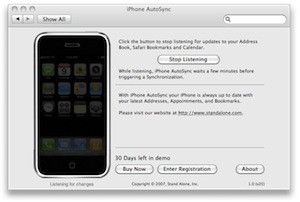
After two months of work we recently put the finishing touches on our first ‘real’ Mac product: iPhone AutoSync.

iPAS.jpg

What is it?

Out of the box, the iPhone does a great job of synchronizing with the Mac’s built in PIM applications, Address Book and iCal, and bookmarks, courtesy of Safari. After years of somewhat kludged together sync solutions on the Palm and Windows Mobile (at least on the Mac side of the fence), the iPhone feels great. One thing quickly becomes apparent, however: after editing a friend’s number in Address Book, I finished a few things, grabbed my phone, and was out the door. When I went to call him, I noticed that my recent edit was not reflected on the iPhone. As it turns out, the iPhone syncs only when it’s placed into its dock (or, manually, when you right-click on it in iTunes and select “Update”). Any changes you make between docking and undocking, however, are lost. Since my phone spends most of its time in the dock, these have to wait until the next time I come back to my computer.Enter iPhone AutoSync! iPhone AutoSync monitors your three synced applications, and, when changes are made, makes a note. After a few minutes, if no more changes have been made, it triggers a sync with your phone. Thus all your information in up to date in both places, pretty much all the time.

The Fiddly Bits

Warning: Here there be geekery. Skip past if you're not interested in the behind-the-secenes.

The main challenge when writing a faceless app is to minimize resource usage. Since iPhone AutoSync is always running, we don’t want to hog too much memory, processor time, or other system resources. However, we also want to make sure we are responsive, and the user doesn’t have to wait too long for us to kick in.Our first attempt used kqueues. Mark Dalrymple and Aaron Hillegass’s wonderful book, Advanced Mac OS X Programming has a great set of examples making use of kqueues. In a nutshell, a kqueue will allow you (among other things; they’re very powerful) to watch a directory for changes. When any application reads or modifies files at that path, your application gets notified.Pretty much just the ticket, right? As it turns out, we were using far too big a hammer here. On a tip from Dave Nanian, we grabbed Notification Watcher, and found that each time you edit an Address Book entry, or modify an iCal event, a series of global notifications gets sent. By listening for those, we were able to find out each time the user’s data is modified, in a much lighter-weight system than kqueue.iPhone AutoSync has a giant bottle-neck, however, and that’s iTunes. Since we keep close watch on our target applications, we could immediately sync the phone each time they change. However, a sync is a relatively expensive operation: we don’t want the user’s iTunes hogging CPU and changing its UI every 30 seconds as they plan out their week’s schedule. The answer here was an aggregator: each time a change event occurs, we set (or reset) a timer. Once no change events have fired for a few minutes, we assume the user has finished editing, and fire the sync. This meant that there would be a slight delay between a change and the iPhone being totally up-to-date, but after a bit of experimentation, we think we’ve found the right mixture between the two extremes.

Finally

Getting iPhone AutoSync out the door reminded me how hard the last 10% of a software release can be. This post was written using Daniel Jalkut’s brilliant new blog tool, MarsEdit 2, just released. Congrats to Daniel on a great product, and conquering that last 10%; I feel your pain (though MarsEdit is of course a much bigger production than iPhone AutoSync.)

Our Redesign

September 7th, 2007

Welcome back!

As you may have noticed, we’ve revamped our site!  First, let me introduce myself: My name is Glenn, and I’m the Stand Alone, Inc. web guy, and I oversaw and implemented our recent redesign. The redesign, as conceptualized by Ben and myself, was intended to make the site easier and more intuitive to navigate without sacrificing the more advanced features that our users enjoy, and I believe we succeeded!

While most of the redesign was focused on layout and presentation, there are a few new site features, such as a smarter download page that automatically serves up the best download based on your browser. We also streamlined our catalog and download index pages, made our version pickers more obvious, and a bunch of other minor tweaks that make the site a bit easier to peruse.

As always, we love to hear comments and suggestions on how to improve the site, so please let us know what you like, what you don’t like, or what you’d like to see added or improved!

The Wikipath of Least Resistance

May 8th, 2007

The More Things Change

April 15th, 2007

On Tuesday, Palm released the first official word on their new, Linux-based operating system. Palm’s announcement was a welcome dose of déjà vu.

Back when we started out on Newton, Palm was the new kid on the block. As we watched, it became the dominant player, and Newton began to fade. In February of 1998, Apple pulled the plug on Newton. Fortunately, we’d already begun the migration to Palm, so this just accelerated our actions. However, the loss of a platform is never enjoyable (especially one that was as fun as the Newton was). For the past several years, we’ve watch Palm cede more and more of the market to other operating systems (Windows Mobile and Blackberry, here in the US; Symbian in Europe).

Palm’s ‘new foundation’, however, is pretty much the ‘low fuel’ light for Palm OS as we know it. Sure, the new devices will most likely run OS 5 (Garnet) applications, but all the new, cool features will not be available unless you’re running natively.

So, again, we’ll be making a platform transition. However, this is now a known path for us: after the jump from Newton to Palm, the Palm to Linux switch will be smoother and more predictable. In addition, after shedding the limits that Garnet has imposed upon us, a fresh new OS with a solid core is going to be a breath of fresh air.

Iron Coding

April 4th, 2007

Hello World!

We’ve been meaning to start a blog for a while, this seemed like a good excuse: over the weekend, I entered the Iron Coder contest and won!

Iron Coder is based on the Iron Chef concept: you’re given an area of the operating system to work in (in this case the Screen Saver framework), and a theme (here it was “Life”). With those two constraints, you’ve got two days to put something, anything, together.

What to write?

With the work we’ve done on Quickipedia, I’ve developed a familiarity with Wikipedia and its layout, so some sort of Wiki-based screen saver seemed a good place to start. One of my favorite features of Wikipedia is its ‘Random Article’ function. I like to request a random article, and then follow its links, picking up odd bits of knowledge along the way. I figured I could recreate this sort of ‘random walk’ in a screen saver.

Wikipath

Wikipath starts with a random Wikipedia page, and draws a portion of it on screen. It then randomly jumps to one of the wiki-links on that page, and draws it next to the original. It keeps this up until it hits a dead end page or runs out of room, then it starts over.

You can download the disk image from the Iron Coder website (containing screen saver and all the source code, if you’re interested.)

A Plan

With my goal firmly in mind, I now had to figure out a way to get there. The first order of business was to figure out how to display a fragment of a webpage, using as little memory as possible (I wanted to have a whole bunch of them onscreen at once, so creating a lot of WebViews would blow memory usage way out of line for a screen saver.) With a little research on WebKit, I was able to create a WebView with a random Wikipedia page, and then use a handy method of NSView to pull out a thumbnail image:

	- (NSData *) dataWithPDFInsideRect: (NSRect) aRect

Taking this data, and then creating an NSImage with it, gave me a pretty decent snapshot of the page. I could then re-use the same WebView for additional downloads, and save on memory. Now, I had to figure out a way to extract all the links on the page, so I could randomly jump to one. I considered manually hunting for them, or perhaps using ruby or perl to pull them out. I recalled that JavaScript lets you access all the links on a page with a simple array. Looking at the WebView docs, I found the perfect method,

	- (NSString *) stringByEvaluatingJavaScriptFromString: (NSString *) script

The JavaScript I wanted to use was dead simple:

	"document.links"

You have to be a little tricky here, since you can’t just convert from whatever JavaScript returns to a nice, usable NSString object. First I needed to grab the number of links, and then iterate in Objective-C through them. The source code is included in the download, for those who want to see the nitty-gritty details.

Finally it was just a matter of adding a few (primitive) graphics so that you could visually follow the page as it wends its way around your screen.

I’m a Winner, Baby!

The upshot of all this is I won a free to ticket to C4, Jonathan ‘Wolf’ Rentzsch’s awesome Mac development conference, hosted right here in Chicago. In addition, I inherit the judging duties for the next Iron Coder, which promises to be an adventure.

Thanks!

Many thanks to the Judge of Iron Coder V, Jonathan Wight. I think there were nearly twice as many entries as the previous contest, and Jon put in a lot of time evaluating ‘em. Check out some of the other great screen savers and applications!

What’s Next?

Wikipath isn’t done yet. Right now I’m working on the ability to select a page that strikes your fancy, and jump to that in your web browser. Hopefully I’ll have that up and running over the weekend. A couple of optimizations are also planned, so it’ll run a bit more smoothly and not hog all the processor. Stay tuned!